Overview
Before connecting your Tapo camera to AegisGates, you need to enable RTSP and create a Camera Account in the Tapo app. This is a separate account from your Tapo login — it is the username and password the bridge script will use to access the camera stream.
This guide uses the Tapo C200 as an example. The steps are the same for other Tapo models.
What You Need
- The Tapo app installed on your phone (iOS or Android)
- Your Tapo camera already set up and connected to your home network
- Your Tapo account password (you will need it to confirm the camera account creation)
Step 1 — Open Camera Settings
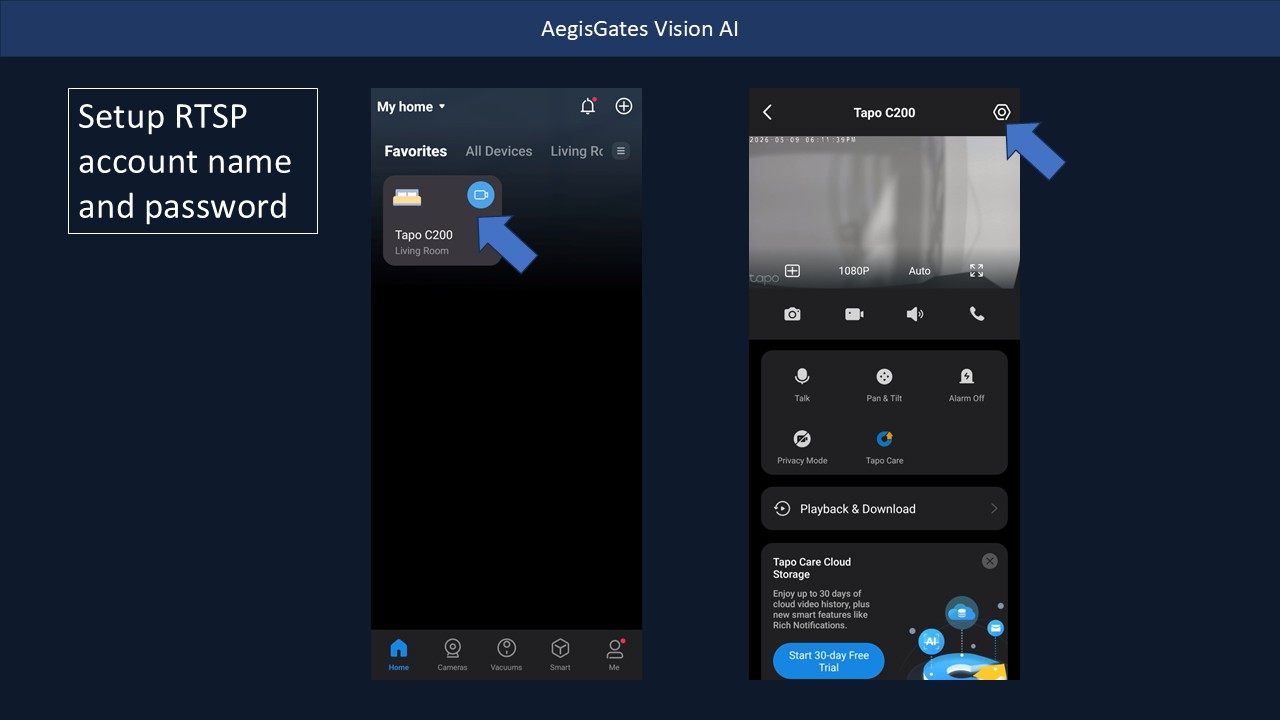
Open the Tapo app and tap on your camera. Once the live view loads, tap the gear/settings icon in the top-right corner to open Device Settings.
Step 2 — Go to Advanced Settings
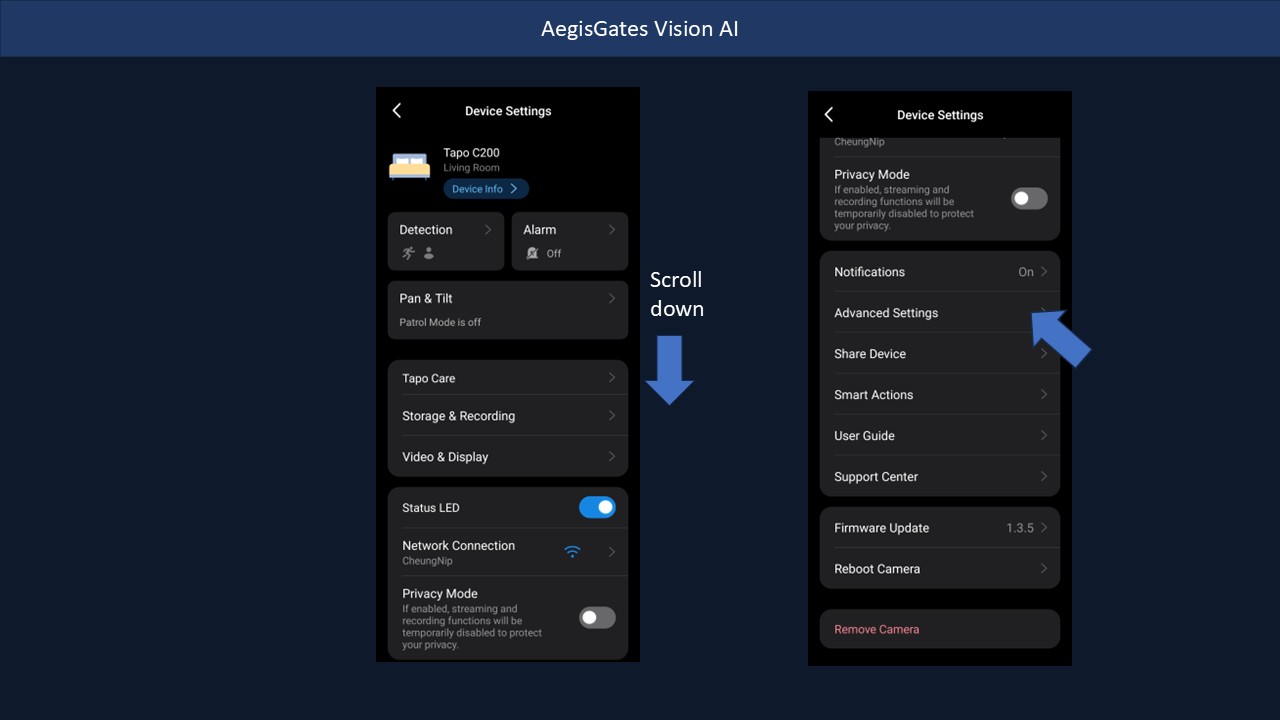
In Device Settings, scroll down until you see Advanced Settings and tap it.
Step 3 — Enable Camera Account
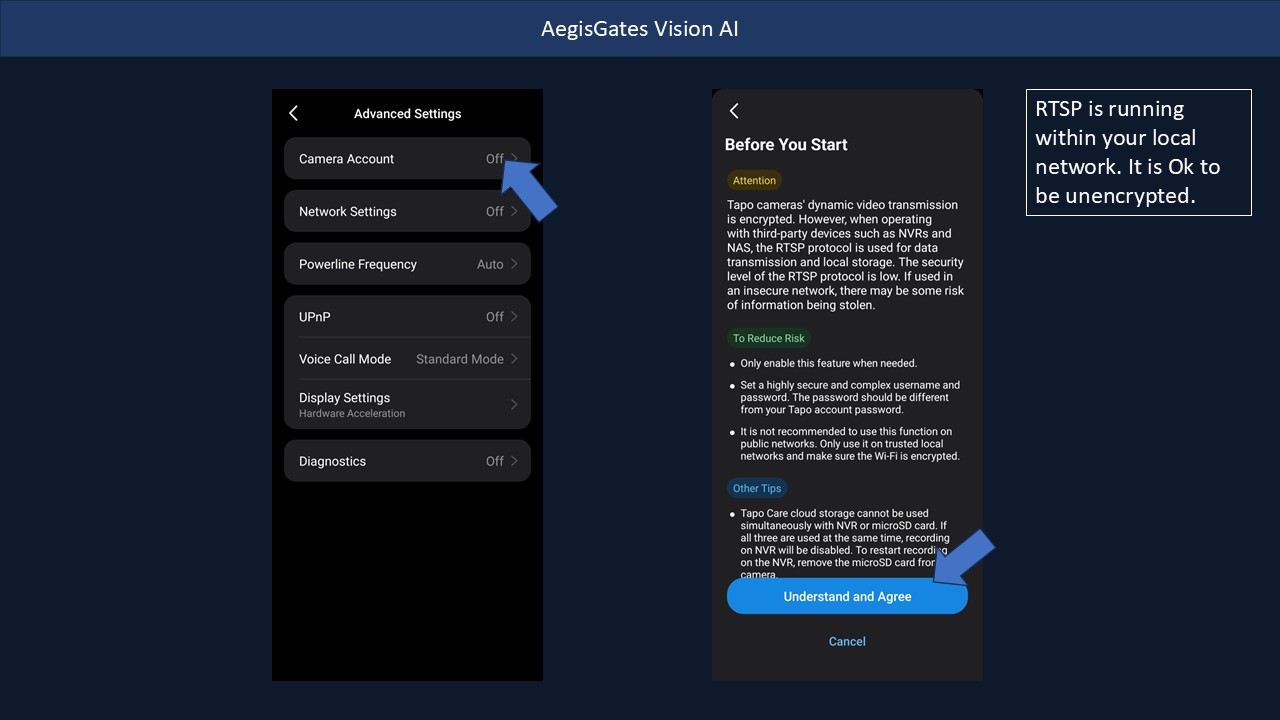
Tap Camera Account (it will show "Off"). A "Before You Start" warning will appear explaining that RTSP is unencrypted on local networks. This is normal — the stream stays within your local network. Tap Understand and Agree.
Step 4 — Create the Camera Account
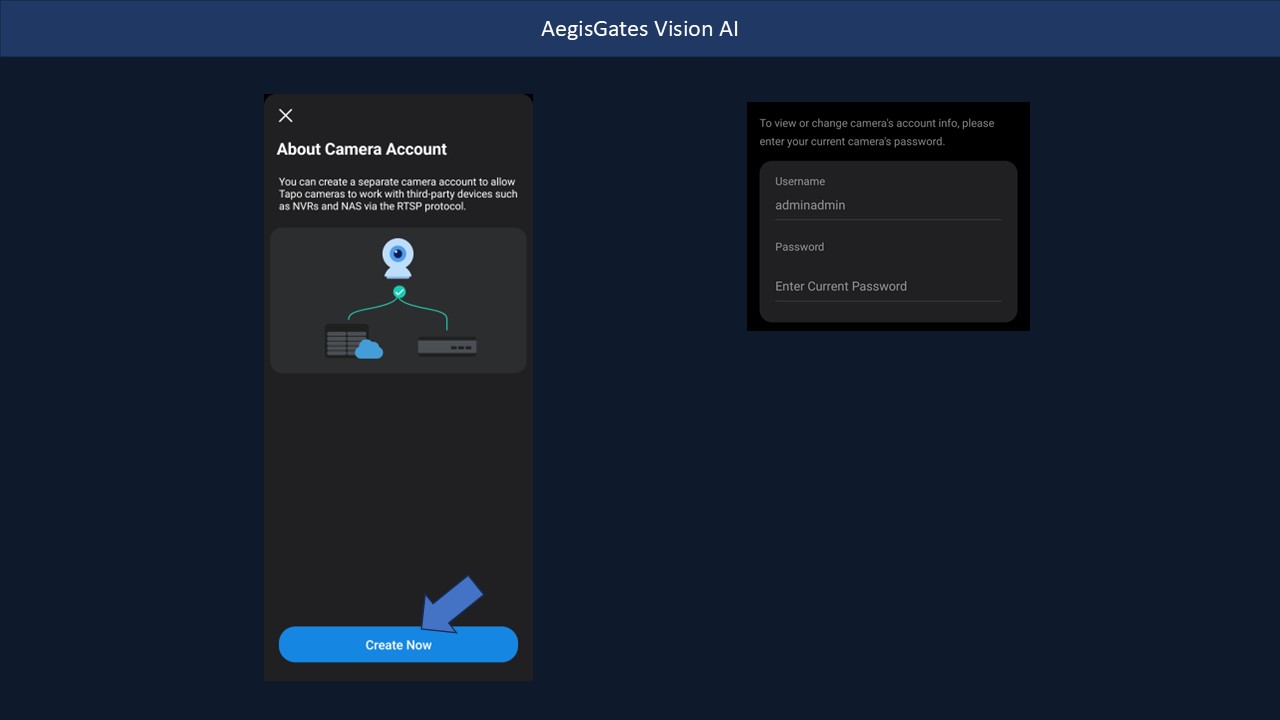
On the About Camera Account screen, tap Create Now. You will be asked to enter your current Tapo account password to confirm.
The camera account username is fixed as adminadmin. Set a password for it — use something different from your Tapo account password. Note it down, as you will need it for the bridge script.
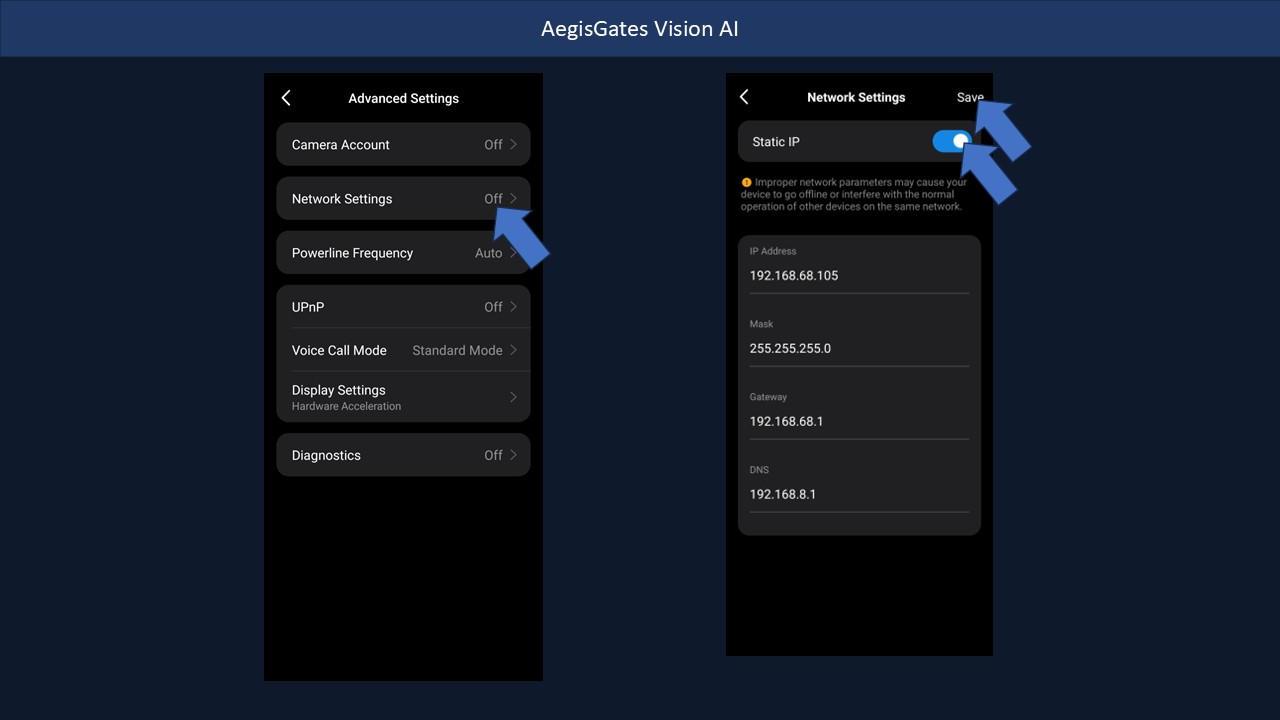
Step 5 — (Recommended) Set a Static IP
To prevent the camera's IP address from changing, go back to Advanced Settings → tap Network Settings → enable the Static IP toggle → enter the IP address, subnet mask, gateway, and DNS for your network → tap Save.
Using a static IP means your RTSP URL never needs to change.
Your RTSP URL
Once the camera account is created, your RTSP URL is:
rtsp://adminadmin:YOUR_PASSWORD@CAMERA_IP:554/stream1Replace YOUR_PASSWORD with the password you set in Step 4, and CAMERA_IP with your camera's IP address (the static IP you set in Step 5, or find it in your router's device list).
For sub-stream (lower resolution, uses less bandwidth):
rtsp://adminadmin:YOUR_PASSWORD@CAMERA_IP:554/stream2Test the Stream
Before adding the camera to AegisGates, test the URL in VLC Media Player:
- Open VLC → Media → Open Network Stream
- Paste your RTSP URL and click Play
- If video appears, the URL is correct and you are ready to run the bridge script
Need Help?
Email us at [email protected] with your camera model and we will help you get connected.